
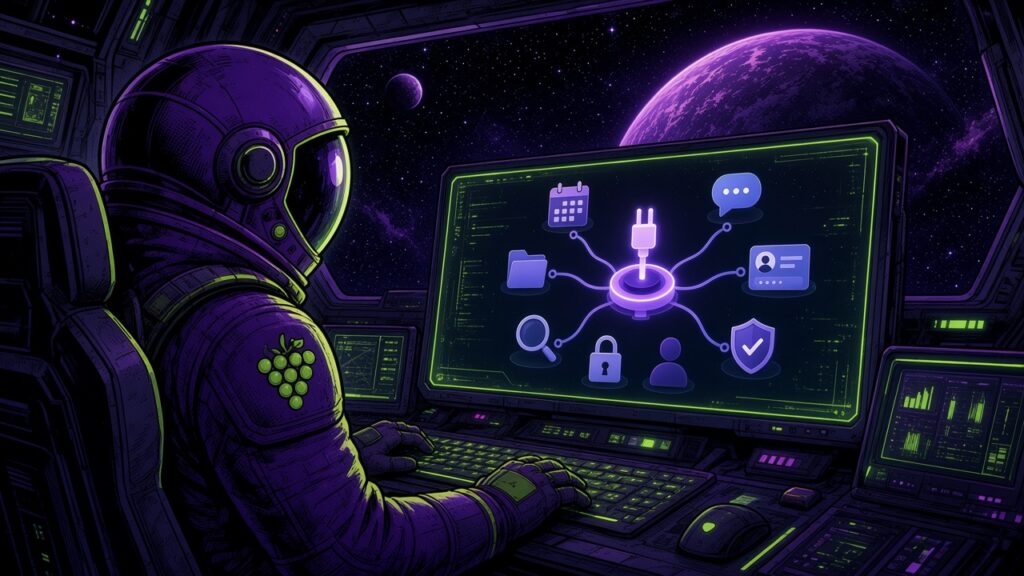
You gave your team ChatGPT, Copilot, or Gemini, and the first week went great. Then someone asked it about last month’s invoices or this week’s schedule, and it had no idea what they were talking about. That gap has a name, and a fix is already built into most of the big AI tools. It’s called MCP.
Here’s a real example from my own week. The style notes for this very post live on a Trello card. I didn’t copy and paste them anywhere. The AI assistant I use, Grok Bot, read that card on its own through an MCP connector, then saved this post to my WordPress blog as a draft for me to review before anything went live. Same AI, my own tools, my own rules.
What MCP is, in plain English
MCP stands for Model Context Protocol. Anthropic, the company behind Claude, released it as an open standard in November 2024. A “protocol” is just an agreed way for two pieces of software to talk to each other, the same way every phone charger agrees on what a USB-C plug looks like.
There are two sides to every MCP connection:
- The MCP server. This is a small program that sits in front of one of your systems, like your calendar, your files, your project board, or your website. It tells the AI, “Here’s what I can do and what I can share.” For example: search contacts, read a document, create a task. Each action comes with a plain description and rules about what information it needs.
- The MCP client. This is the AI app you already use: ChatGPT, Copilot, Gemini, Claude, or Grok Bot. When you ask a question, the app checks what the connected servers offer, picks the right action, and the server does the work and hands back the result.
The official MCP site compares it to a USB-C port for AI apps. Before USB-C, you had a drawer full of different chargers. Before MCP, every AI app needed its own custom connection to every system. Now a system can offer one MCP server, and any AI app that speaks MCP can plug into it.
Why it matters for your organization
1. Build or turn on a connector once, use it in many AI apps. This isn’t one company’s experiment anymore. Here’s what I confirmed this week:
- OpenAI added MCP support in March 2025, and apps inside ChatGPT are built on it. ChatGPT Business, Enterprise, and Edu workspaces can add custom MCP apps, with actions that change data rolling out in beta.
- Microsoft made MCP generally available in Copilot Studio in May 2025.
- Google’s Gemini CLI has MCP support built in, and Gemini Enterprise lets admins connect a custom MCP server.
- xAI’s Grok API can connect to remote MCP servers.
- In December 2025, Anthropic donated MCP to the Agentic AI Foundation under the Linux Foundation, with Google, Microsoft, and AWS among the supporters. No single company owns it.
That means if your team is testing three different AI tools, you’re not building three different integrations.
2. You decide what the AI can see and do. An MCP server only offers the actions it was built or set up to offer. Many connections use a normal sign-in, so the AI works with a person’s own permissions instead of a master key. In ChatGPT business plans, only admins can publish custom MCP apps, and ChatGPT may ask for confirmation before an action that changes data. Copilot Studio shows which MCP server and tool were used, so you can see what happened.
3. Your records stay in the systems you own. Instead of uploading copies of files into every AI tool, the AI reaches in for what a task needs. One honest note: whatever it fetches does pass through that AI service, so the service’s data terms still matter.
4. Learning sticks when AI does real work. Teams get past “write me a poem” fast when the AI can actually check the calendar, find the file, or draft the task in the tools they use every day.
Safe first steps you can take this month
- Pick one system and one job. For example: “Answer questions from our shared policies folder.” Not “connect everything.”
- Start read-only. Let the AI look before you let it change anything. Many connectors and AI apps let you turn on reading first.
- Give it the least access that works. Connect with an account or permission set that only reaches what the job needs. If the AI app lets you choose which actions are allowed, turn off the rest.
- Keep approvals on for anything that writes, sends, or deletes. A quick “yes, do it” is cheap insurance.
- Know where the data goes. Which AI company is on the other end? Does your plan use your data for training? Where are the logs kept? Get those answers in writing before you connect anything sensitive.
- Only use servers from sources you trust, ideally the official one from the tool’s own maker. An MCP server is software that acts with your access, so treat it like any app you’d install.
- Check in once a month. Look at what was connected and what the AI actually did. Remove anything nobody uses.
The one thing to remember
MCP turns AI from a smart stranger into a helper that knows your work, under rules you set. And every one of those connections starts with accounts you own: your domain, your email on that domain, and your website. If any of those still live under a former web person’s name or a free email address, fix that first. It’s the foundation everything else plugs into.
Chris, Cyber Grapes